How To Change the Database Source in Starship
Release Date: 01/31/26
Version: 8.5 and Above
The
legacy version of Starship has become expensive to maintain since UPS
and Fed Ex have changed their API. V-Technologies is positioning the
Starship Cloud solution as the more preferred solution. Although the
functionality is mostly consistent with the legacy version, the Cloud
interface is different. A specific question was raised on how to change the database source. This will step you through
that change.
From the main screen, click the Setup tab near the top of the window.
From the drop-down menu on the left, select SQL Interface.
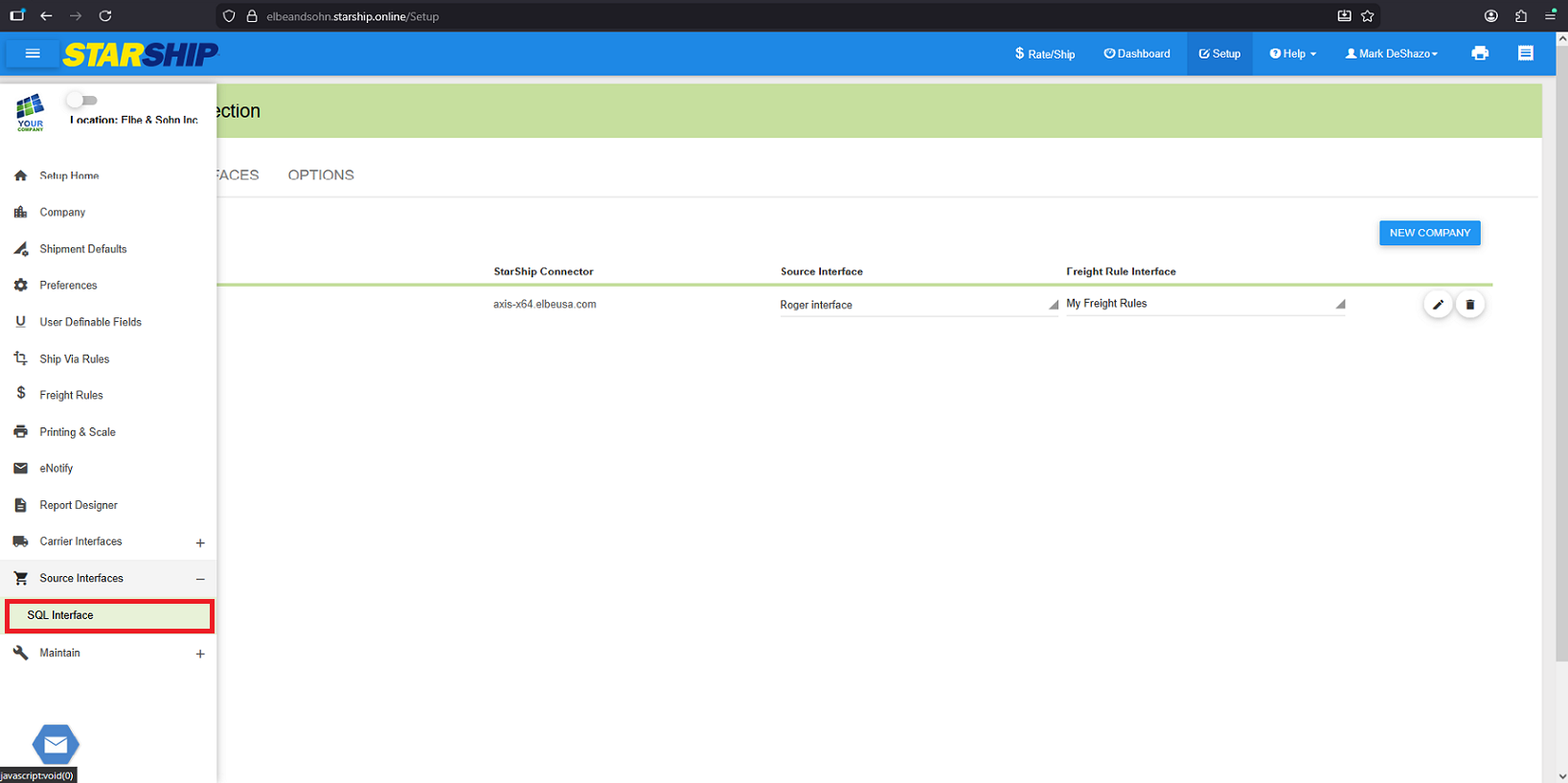
You can see from here the computer that is used for the Starship Connector.
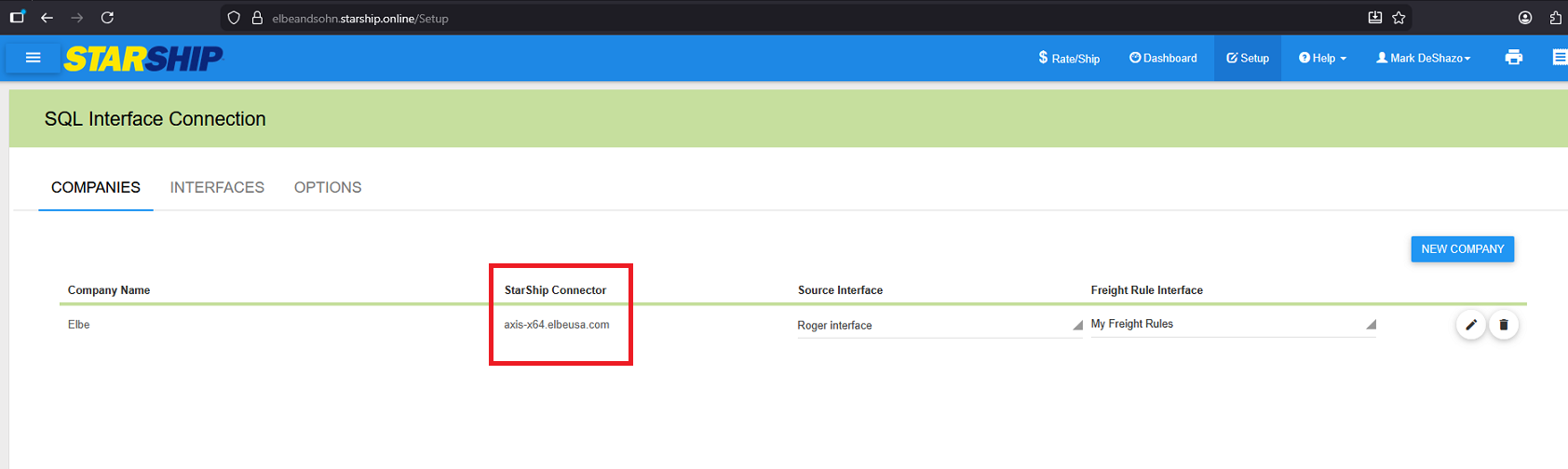
In this example, the computer name is axis-x64. Log into that computer and make sure the database you want to connect is available in the ODBC Administrator.
The new database is named Elliott86Data02. Back in the Starship Cloud interface, you will need to select the New Company button since you cannot change the database of an existing company.
Next, you will choose a connector. Make sure you are using the connector for the computer with the new database. We are still using axis-x64.
Now you will choose a Source Data Source, which should be Microsoft ODBC Data Source.
The next option will be for the Data Source Provider. Most likely, the only option here will be for the .NET Framework Data Provider for ODBC.
Now you can select the database that you made available on the connector computer. We will select our new database of Elliott86Data02.
We can now give our new company a name.
When you start a shipment, the new company can be selected.
If this is to replace the old database, then the old company can be removed. You cannot directly modify the old database connection due to Starship has a database restriction, so you have to create a new company and remove the old one.
If you need to ship from multiple companies in Elliott, then you can add as many companies as needed.
MAD
Related Articles
How To Change the Note Type In Starship Cloud
Release Date: 01/05/26 Version: 8.5 and Above The legacy version of Starship has become expensive to maintain since UPS and Fed Ex have changed their API. V-Technologies is positioning the Starship Cloud solution as the more preferred solution. ...Create a New Database in the PCC for Relational Engine Access
Release Date: 12/15/2017 Modified Date: 02/07/2025 Elliott Business Software relies on PSQL database engines. PSQL consists of two types of engines: transactional and relational. The transactional engine used to be called "Btrieve," which is a record ...Receive 'Invalid Column Name FILLER_001' After Changing to New Database Connection
Release Date: 04/05/2019 Version: 8.0 & Up Q - We recently changed our database connection from ELLIOTTDATA to ELI85DATA. After the change, our FedEx shipping manifest system is complaining of an 'Invalid Column Name FILLER_001' like below: ...Elliott Database Naming Convention
Release Date: 06/30/20 Version: 7.x & Up General speaking, Elliott's data is stored in <ElliottRoot>\DATA or DATA_99 folders. Where <ElliottRoot> is like "M:\Elliott8" and "99" can have the value of 02-99 that represent the Elliott company ID. The ...Can I Use a USB Scale on my Workstation with Starship Running on a Terminal Server?
Q - My organization utilizes remote desktops exclusively. All of our users run their applications on a terminal server. This includes Elliott Business Software and the integrated shipping manifest software Starship. One difficulty we are encountering ...